It is natural for programmers to navigate files and make modifications. A powerful text editor and efficient editting skills can greatly increase the productivity. This article will discuss the navigation skills of Vim inside a file.
Getting Around Faster
Before making modifications to the text, usually, we need to move the cursor to a proper postion. For general text editors, this means the tedious switches between mouse and keyboard. Vim resolves the cursor movement issues in an elegant approach by key bindings and various commands. Basically, the move actions in Vim have three different granularities: line, screen, and file.
Line Aspect
Move to the start & end of a line:
0   →  To first character of line
^   →  To first nonblank character of line
$   →  To end of line, including blanks
g_  →  To last nonblank character of line
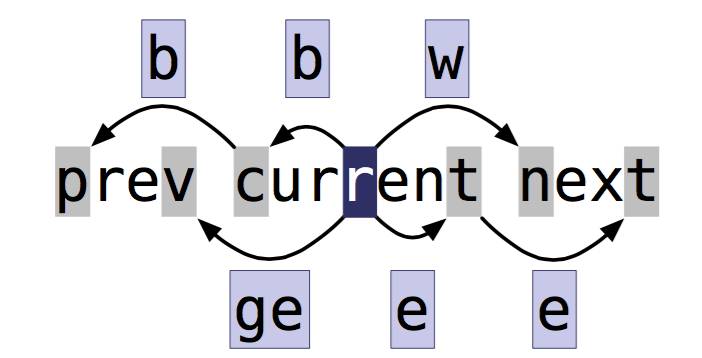
Commands for moving word-wise:
w   →  Forward to start of next word
b   →  Backward to start of current/previous word
e   →  Forward to end of current/next word
ge  →  **Backward to end of previous word**
Find a Character in line:
f{char}   →  Forward to the next occurrence of char
F{char}   →  Backward to the previous occurrence of char
t{char}   →  Forward to end of current/next word
T{char}   →  Backward to the character after the previous occurrence of char
;         →  Repeat the last character-search command
,         →  Reverse the last character-search command
word vs WORD :
word: A word consists of a sequence of letters, digits, and underscores, or as a sequence of other nonblank characters separated with whitespace.
WORD: The definition of a WORD is simpler: it consists of a sequence of nonblank characters separated with whitespace.
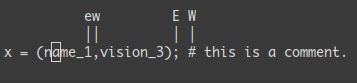
Note: For motion commands mentioned above, quantifiers can be used to modify them. For example: 3e and 2fe.
However, counting is tedious, time-consuming and error prone. Don't count if you can repeat.
Screen Aspect
It is very common to jump between several lines. Say we need to change the name of a function, which is at the bottom of current screen.
Instead of repeatedly typing j or scrolling down, we can use H, M, and L to arrive the nearby line.
Since the target line is very close, we can reach the target line by typing j with a count number. The number is small and easy to count.
And I use the following mnemonics:
H = high (top of screen)
M = mid  (medium of screen)
L = low  (bottom of screen)
For Emacs user, in the evil-mode of Emacs, there is a great feature called ace jump, which allows you to jump to a word by typing its' head character. This feature is really intutive way of navigation, which combine the visual recognition and typing.
File Aspect
Within a file, the navigation could be achieved by invoking incremental search. If the cursor is not under the word we want to search,
then we need to type / and the word, otherwise, we can just use * command to search. And using n or N to search forward or backward.
Bookmark can be used in advance when you foresee the backtrace. Ctrl-O is the one-off bookmark.
In another case, given line number, we can use linumG to jump to the target line. This is very useful when debugging code.
gg and G are two special forms of linumG. They refer to the top of file and bottom of file.